After a decent break from work, it was time to open the laptop again and those emails! With a relaxed mindset and newfound enthusiasm, I spend some time thinking and tweaking how to organise emails in Outlook. This page covers my daily Outlook email system. If you want the broader picture on organising your digital life, have a look at how to organise life admin.

My daily Outlook email routine
Organising emails in Outlook is an extension of my daily computer habits. It starts, unsurprisingly, with opening Outlook and looking at my emails. At this stage pause and celebrate you have opened emails a big step if you dread opening that inbox.
At the time of writing, my email habits are as follows:
Step 1: Start with similar senders
These senders have either something urgent or they are spamming you
Can you delete these emails?
Can you unsubscribe?
Can you auto-file them into a folder so you only see them when relevant to you?
For example, I currently have a folder with emails regarding AI software – I have set up a rule that all emails from AI suppliers go straight to this folder. When I am ready and want to dive into the AI space, all I need to do is go to my folder to stay up to date. Meanwhile, it will prevent my inbox from being clogged up.
These three steps will save you hours in future because if you unsubscribe or auto-file them, you don’t see these emails in your main inbox.
Step 2: Pace yourself — especially if you are behind
If you are behind on hundreds or thousands of emails, you can start slowly, one task at a time. Maybe delete emails today or set a number of emails to delete, e.g. 10 or 50. Once you have done this, spend time unsubscribing from many emails and auto-file or manually file items in a similar category another day.
I like to set a timer, once the time is up you celebrate your achievement however small and improve a little again tomorrow.
“How to organise emails in outlook – you succeed when you are left with the emails you wanted or needed to receive and read. ”
Once you have applied the above steps several times, possibly over several days, what should be left are only the important emails you actually want to see. If there is still email clutter, go back to our first step: How to organise emails in Outlook, find similar senders.
At this stage, there should be a palpable sense of relief as there are only worthy emails left in the inbox. Let’s dive into these emails a bit more.
Step 3: Sort your worthy emails
Are these emails FYI? If so, great! Read and file (if you like, send a thank-you email; I normally don’t, as it starts a thank-you email chain).
A note on filling email: I have 1 folder called FILE where 99% of my emails that I keep are stored. Why? Because you can search folders on computers by name, who sent it, the topic, etc. The more folders you have, the harder it is to find your email in future.
Are they about a meeting? If so, make sure the meeting is in your calendar and keep the notes next to this meeting or 30 minutes beforehand when you are mentally prepping.
Are they about the same topic?
Often, when a few emails have gone back and forth, there is a reason you need to figure out.
Who is involved?
Do you need to read something?
Is there a meeting coming up?
Do you need to prepare something?
Basically, you want to find out the importance of your email grouping
Step 4: Deal with action emails separately
Are they action emails?
These are my least favorite emails as I need to do something, either fill something in, call someone, file something or use my brain to actively engage with said topic.
As a general rule:
If it takes less than 1 minute, do it
More than 1- 5 minutes, or you hate doing this, e.g. filling in a form in which you need to look details up - book some time, limit this time and have a reward after the dreaded activity.
Step 5: Optional — do a quick tidy up
This is optional, but I like to go through the folders and either right-click on “read” or “empty folder”. What this does is remove all the little information numbers about how many emails are in your deleted folder. In my mind, it calms this area of your life a little bit.
Summary — the full system at a glance
Do emails daily when you are working / on the computer for life admin
Find similar senders – delete, unsubscribe or auto-file them where possible.
Review your worthy emails – find out why you received this email, then file or
Action emails – set aside time to address them.
Optional tidy up
Rinse and repeat for a continuously organised inbox
A few things that make this system work
I do this every day when I am in work mode and on the computer. Generally speaking, I do not check emails on the phone or on days off. It mucks up my brain and this system too much. You end up with open loops and thinking about things you can’t do anything about when you are outside the house, relaxing, exercising or spending time with loved ones.
The goal is to get in, deal with your emails, and get out. I try to spend as little time in the inbox as possible — it is not a place to live. The rest of the time, I work through meetings, reading, writing, or creating on the device.
Many people argue for a zero inbox. I like this, but some emails will take a while to resolve. Your choice is to add it to a task list/manager or leave it in the inbox until the task is done.
For me sometimes it is easier to leave the email in the inbox e.g. I am currently working on an insurance claim all completed emails are filed but those I am waiting for or still need action, they are still in the inbox. The insurance work is on my calendar; however, if I file the latest email, it is outside my view, and I could forget.
The counterargument to this, and a purist would say that if this correspondence were paper-based, you would not leave your open mail in the letterbox.
Another example is a work project: I place all emails going back and forth between stakeholders on a Microsoft board. This clears my inbox, and I know it won’t be forgotten since we go through this board and all tasks every week.
With regard to the above note, you can really use Outlook or any similar tool to the fullest, for example, to combine emails, notes, and your calendar so you have the relevant information when you need it. With a lot of these things, experiment and see what suits you best at this time in your life.
I have combined all my 5 emails (for a variety of areas of my life) into the one outlook account, this means whether the actual email is outlook, Hotmail or google doesn’t matter they all come into one system, and I deal with them in the same process from one location. This combining of email accounts to one place is magic and a key setup that allows me to have organised emails in Outlook.
As always, I hope this article on how to organise emails in outlook (or any other email provider) was helpful. One of my books goes into great detail about what and how to organise paperwork if you want to take your skill level to the next level.
Frequently Asked Questions
How do I organise my emails in Outlook?
Start by grouping similar senders — delete, unsubscribe, or auto-file them into folders. Then work through what's left: file informational emails, add meeting details to your calendar, and set aside time for emails that need action. Do this daily, and it takes under 20 minutes.
How many folders should I have in Outlook?
As few as possible. One folder called FILE, where 99% of saved emails go, is enough for most people. The more folders you have, the harder it is to find things later. Use the search function — it is faster than browsing through dozens of folders.
How do I stop my Outlook inbox from getting overwhelming?
Check emails at set times rather than constantly. Unsubscribe from anything you delete without reading. Set up rules to auto-file newsletters and subscriptions into folders so they never hit your main inbox. If you are already behind, tackle it in small chunks — 10-50 emails a day — rather than trying to clear everything at once.
Want to go deeper?
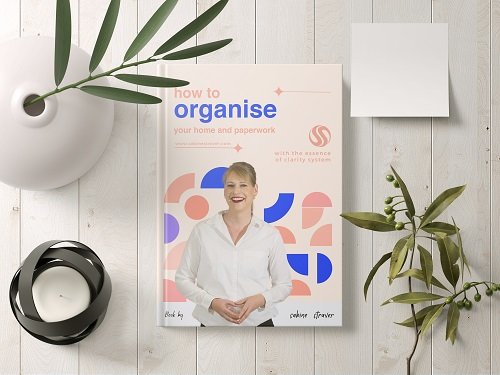
How to Organise Your Home and Paperwork covers email, paperwork, and your entire home filing system in detail — built for real Australian homes