How to organise emails in outlook
After a decent break from work, it was time to open the laptop again and those emails! With a relaxed mindset and newfound enthusiasm, I spend some time thinking and tweaking how to organise emails in outlook. In this article I will combine how to organise emails in outlook and you can have a look at a closely related article here: how to organise outlook.

How to organise emails in outlook daily
Organising emails in outlook is an extension of my daily habits on the computer. It starts unsurprisingly with opening outlook and looking at my emails. At this stage pause and celebrate you have opened emails a big step if you dread opening that inbox.
At the time of writing my email habits are as follows:
1. How to organise emails in outlook - Find similar senders
These senders have either something urgent, or they are spamming you
1.1. Can you delete these emails?
1.2. Can you unsubscribe?
1.3. Can you auto file them into a folder, so you only see them when relevant for you?
For example, I currently have a folder with emails regarding AI software – I have set up a rule that all email from AI suppliers go straight to this folder. When I am ready and want to dive in the AI space all I need to do is go to my folder to stay up to date. Meanwhile it will prevent my inbox from being clogged up.
These three steps will save you hours in future because if you unsubscribe or auto file them you don’t see these emails in your main inbox.
How to organise emails in outlook – pace yourself
If you are behind hundreds or thousands of emails what you can do is start slowly with one task at a time. Maybe delete emails today or set a number of emails to delete e.g. 10 or 50. Once you have done this spend time to unsubscribe from many emails and auto file or manually file items in a similar category another day.
I like to set a timer, once the time is up you celebrate your achievement however small and improve a little again tomorrow.
“How to organise emails in outlook – you succeed when you are left with the emails you wanted or needed to receive and read. ”
Once you have applied the above steps several times, possibly over several days, what should be left are only important emails you actually want to see. If there is still email clutter, go back to our first step: How to organise emails in outlook find similar senders.
At this stage there should be a palpable sense of relief as there are only worthy emails left in the in box. Let’s dive into these emails a bit more.
1. How to organise emails in outlook – Group worthy emails
1.1. Are these emails FYI? If so great! Read and file (if you like send a thank you email, I normally don’t as it starts a thank you chain of emails).
A note on filling email: I have 1 folder called FILE where 99% of my emails that I keep are stored. Why? Because you can search folders on computers on name who send it, the topic etc. The more folders you have the harder it is to find your email in future.
1.2. Are they about a meeting? If so, make sure the meeting is in your calendar and keep the notes next to this meeting or 30 minutes beforehand when you are mentally prepping.
1.3. Are they about the same topic?
Often, when there are a few emails that have gone back and forth, there is a reason for this that you need to figure out.
1.3.1. Who is involved?
1.3.2. Do you need to read something?
1.3.3. Is there a meeting coming up?
1.3.4. Do you need to prepare something?
Basically, you want to find out the importance of your email grouping
2. How to organise emails in outlook – action emails
2.1. Are they action emails?
These are my least favorite emails as I need to do something, either fill something in, call someone, file something or use my brain to actively engage with said topic.
As a general rule:
2.1.1. If it takes less than 1 minute, do it
2.1.2. More than 1- 5 minutes or you hate doing this e.g. filling in a form in which you need to look details up - book some time, limit this time and have a reward after the dreaded activity.
3. How to organise emails in outlook – optional tidy up
This is optional but I like to go through the folders and either right click on “read” or “empty folder”. What this does is removes all the little information numbers about how many emails are in your delete folder. In my mind it calms this area of your life a little bit.
The steps on how to organise emails in outlook in summary:
Do emails daily when you are working / on the computer for life admin
Find similar senders – delete, unsubscribe or auto file them where possible.
Review your worthy emails – find out why you received this email then file or
Action emails – set aside time to action these emails.
Optional tidy up
Rinse and repeat for a continuously organised inbox
A few notes on how to organise emails in outlook
I do this every day when I am in work mode and on the computer. Generally speaking, I do not check emails on the phone or on days off. It mucks up my brain and this system too much. You end up with open loops and thinking about things you can’t do anything about when you are outside the house, relaxing, exercising or spending time with loved ones.
The system to organise your emails in outlook is “turnkey” for set days and set times, meaning I try to spend as little time in the inbox as possible. The rest of the time I work either via meetings, reading, writing or creating on the device.
There are a lot of people who argue for a zero inbox. I like this, but some emails will take a while to resolve. Your choice is to put it into a task list/manager or leave it in the inbox until the task is done.
For me sometimes it is easier to leave the email in the inbox e.g. I am currently working on an insurance claim all completed emails are filed but those I am waiting for or still need action, they are still in the inbox. The insurance work is in my calendar, however if I file the latest email, it is outside of my vision, and I could forget.
The counter argument to this and a purist would say that if this correspondence was paper based you would not leave your opened mail in the letterbox.
Another example is a work project, I place all emails going back and forth between stakeholders on a project on a Microsoft board. This clears my inbox, and I know it won’t be forgotten since we go through this board and all tasks every week.
In regard to the above note, you can really use outlook or any similar tool to the fullest to for example combine emails, notes and your calendar so you have the relevant information when you need it. With a lot of these things experiment and see what suits you best at this time in your life.
I have combined all my 5 emails (for a variety of areas of my life) into the one outlook account, this means whether the actual email is outlook, Hotmail or google doesn’t matter they all come into one system, and I deal with them in the same process from one location. This combining of email accounts to one place is magic and key set up that allows me to have organised emails in outlook.
As always, I hope this article on how to organise emails in outlook (or any other email provider) was helpful. One of my books goes into great detail about what and how to organise paperwork if you want to take your skill level to the next level.
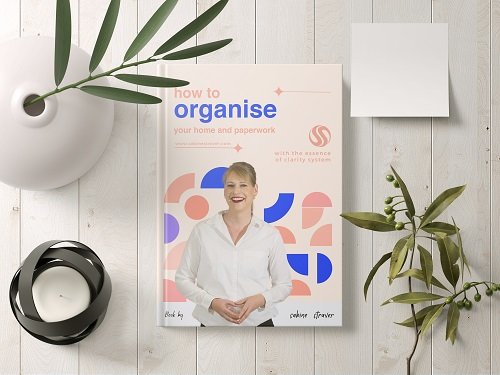
The best book if you want to learn how to organise emails in outlook (and beyond)
One of my books goes into great detail about what and how to organise paperwork. Get a copy if you want to take your skill level to the next level.